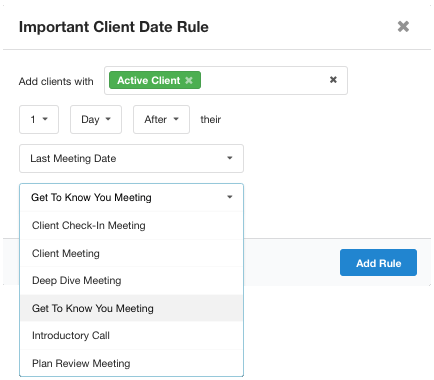
Use the Meeting Date section to:
See the date and time of the next/last scheduled meeting at a glance
Track the different types of meetings as they occur
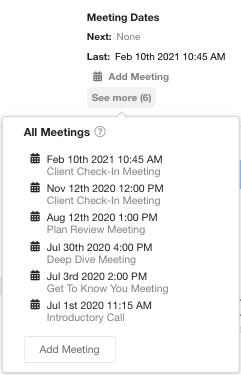
See a complete history of client meetings and their types in the Show More menu
Get started by selecting the Add Meeting button at the top right corner of the Client Card:
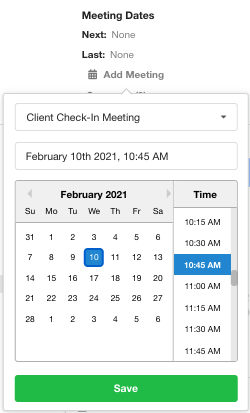
Select or create the meeting type by simply typing in the meeting type dropdown, and select the + Create option.

Now use the date and time picker to select the meeting's date and time and hit Save.
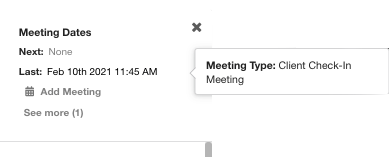
Meeting Date Types can be previewed from the next and last meeting dates on-hover:
Or, you can see a complete summary of all meetings under the Show More menu:
You can leverage meeting date types with Important Client Date Rules to plan better prospecting, onboarding, and check-in management workflows by configuring these automation rules to populate clients on, before, or after a specific meeting date:

Don't forget to update your existing automation rules to leverage client meeting date types in your existing meeting management workflows: